


If you’ve just bought hosting and logged into your dashboard for the first time, you might feel like you just entered a spaceship control room. Buttons everywhere. Strange icons. Terms you’ve never heard before.
Don’t worry 😄
This cPanel hosting guide will walk you through everything in simple language so you can manage your website like a pro — even if you’re a complete beginner.
What Is cPanel?
cPanel is a web-based control panel that helps you manage your hosting account easily. Instead of typing complicated server commands, you get a clean dashboard with clickable tools.
Think of it as the “remote control” for your website.
With cPanel, you can:
- Upload website files
- Create email accounts
- Manage domains
- Install WordPress
- Create backups
- Manage databases
This cPanel hosting guide will help you understand the most important features step by step.
How to Access cPanel
Usually, your hosting provider sends you a link like:
yourdomain.com/cpanel
or
yourdomain.com:2083
Enter your username and password — and welcome to your website’s control center.
If it looks overwhelming at first, relax. You only need to learn a few main sections to get started.
1. File Manager – Where Your Website Lives
The File Manager is where all your website files are stored.
Important folder:
- public_html → This is where your website files go.
If you upload an HTML file inside public_html, it becomes visible on your website.
In this cPanel hosting guide, remember one golden rule:
👉 public_html = your website’s home.
2. Domains Section – Managing Your Addresses
Inside cPanel, you can:
- Add addon domains
- Create subdomains
- Redirect domains
Example:
- blog.yourwebsite.com → subdomain
- anotherwebsite.com → addon domain
This makes cPanel powerful for people managing multiple websites.
3. Email Accounts – Professional Emails
Go to “Email Accounts” in cPanel and create one in seconds.
This is one reason many people prefer shared hosting with cPanel — everything is in one place.
This cPanel hosting guide wouldn’t be complete without mentioning how easy business emails become with it.
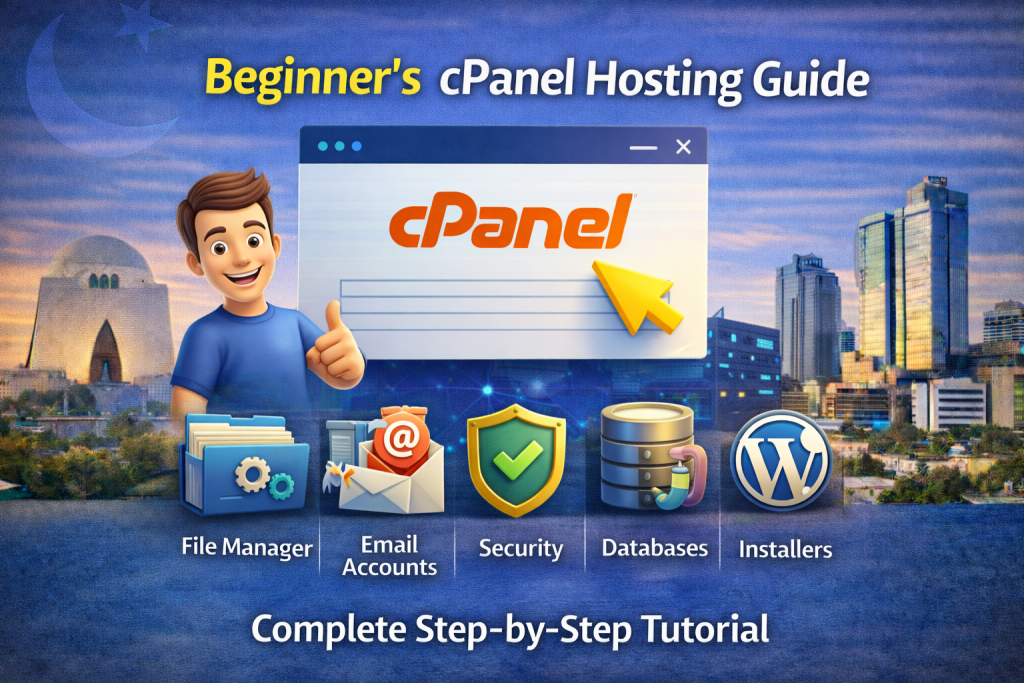
4. Databases – For Dynamic Websites
If you install WordPress or any CMS, it needs a database.
In cPanel you can:
- Create MySQL databases
- Add database users
- Access phpMyAdmin
Don’t worry if this sounds technical. Most installers (like Softaculous) create databases automatically for you.
5. One-Click Installers – The Magic Button
Most hosting providers include Softaculous or similar tools.
With one click, you can install:
- WordPress
- Joomla
- Magento
- Laravel
No coding required.
In this cPanel hosting guide, this is probably your favorite feature — because it saves time and effort.
6. Backups – Your Safety Net
Never ignore backups.
Inside cPanel, you can:
- Download full backups
- Restore website files
- Backup databases
Some hosting providers also offer automatic daily backups.
Backing up your website regularly protects you from hacks and mistakes.
7. Security Features
cPanel includes basic security tools like:
- SSL management
- Password-protected directories
- IP blocker
- Hotlink protection
These tools help keep your website safe.
A good cPanel hosting guide always reminds beginners: security is not optional.
8. Metrics – Website Statistics
Want to know:
- How many visitors came?
- Which pages are popular?
- Where traffic is coming from?
cPanel includes tools like:
- Awstats
- Visitor logs
- Bandwidth usage
These help you monitor website performance.
Is cPanel Good for Beginners?
Yes — absolutely.
Why?
- Easy interface
- No coding required
- All tools in one place
- Beginner-friendly layout
- Huge community support
This cPanel hosting guide shows that you don’t need to be a developer to manage hosting confidently.
Final Thoughts
Starting your website journey can feel confusing. But once you understand the basics, cPanel becomes simple and powerful.
With this cPanel hosting guide, you now know:
- Where your files go
- How to create emails
- How to install WordPress
- How to manage domains
- How to keep your website secure
Take your time exploring the dashboard. Click carefully. Learn step by step.
Soon, what once looked complicated will feel completely normal.
And that’s when you officially graduate from “confused beginner” to “confident website owner.” 😄
Our trusted User
Share this Post
How to Secure Your Website with Hosting Features
EcomiHost BlogNode.js & Python Hosting – Who Needs It?
EcomiHost Blog